
One of the most useful and important things to know on the site is how to get your files into the server and how to link them to the various places on the site. And good news, it’s pretty simple.
First you will, of course, want to be signed in and have an account that is allowed access to the MyFiles/My Explorer areas.
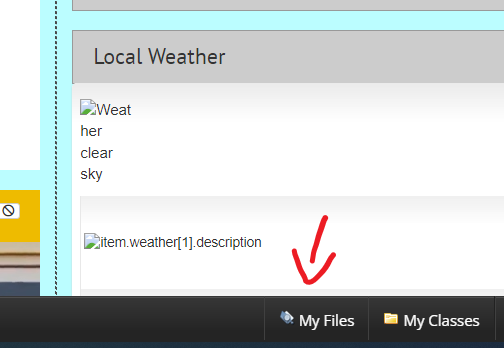
After that you will want to look for a button that looks like this. If you don’t have such a button, a similar one can be found in the menu that appears when you hover over your account name. That button will be called “ My Explorer” but will lead to the same place.
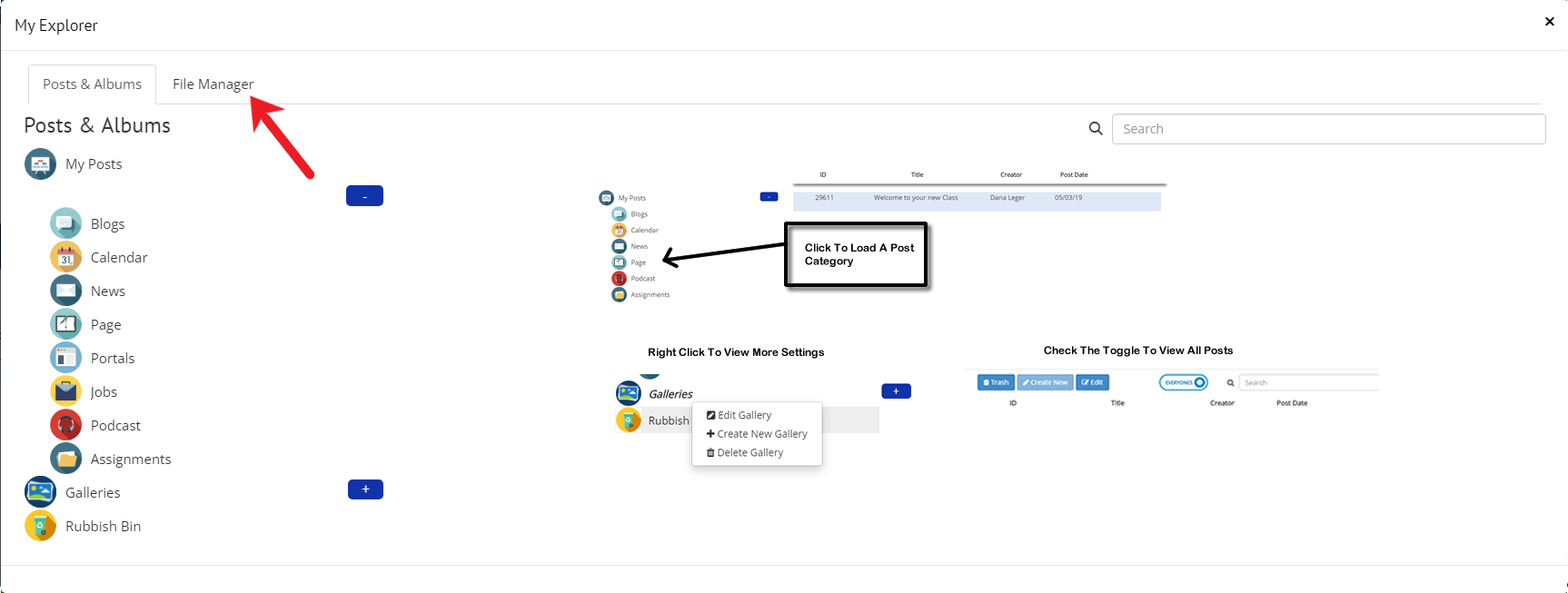
A box will then appear that is titled “ My Explorer”. It will by default open to Posts and Albums the first time you access it. This contains all of the posts, pages, portals and galleries on the site and while important, isn’t where we need to be right now. Go ahead and click File Manager in the tab next to it.
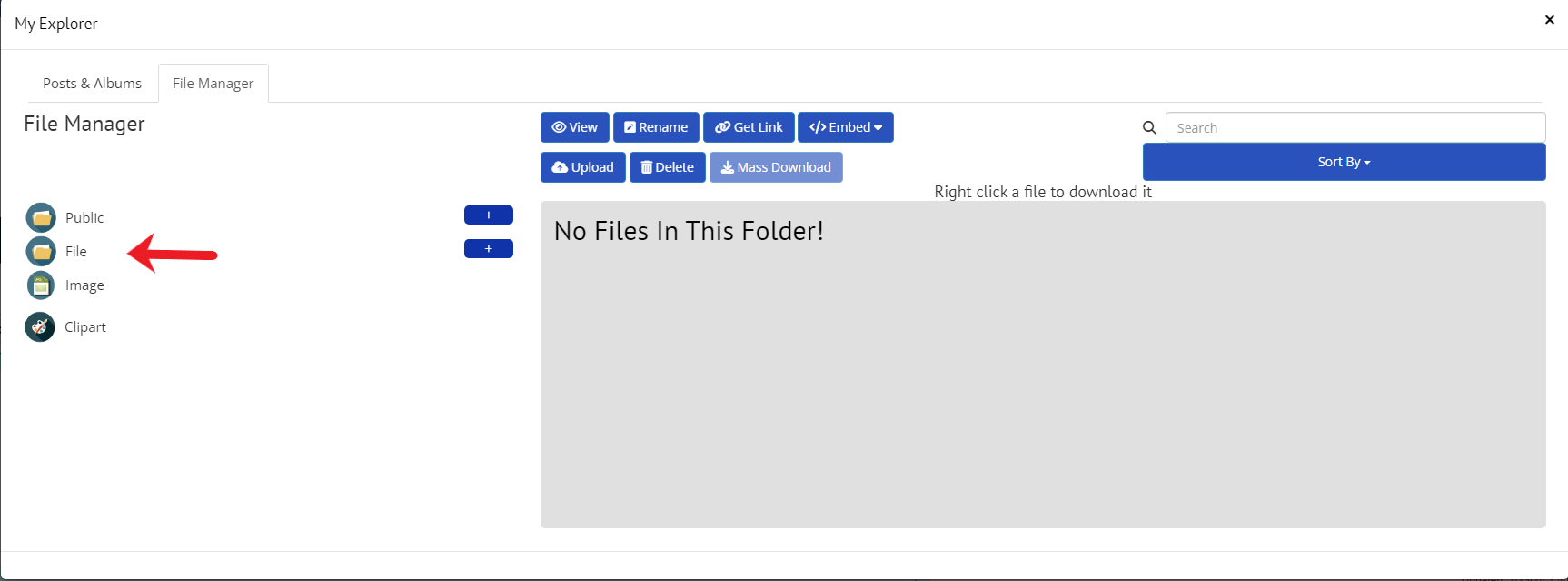
From here you will now want to click on Files in the left column of this box. A grid of all of the files that you have uploaded to the site will appear to the right.
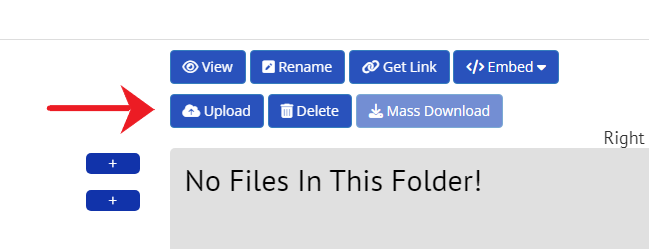
If you want to upload files then you will want tok click the upload button above the right side of this box here.
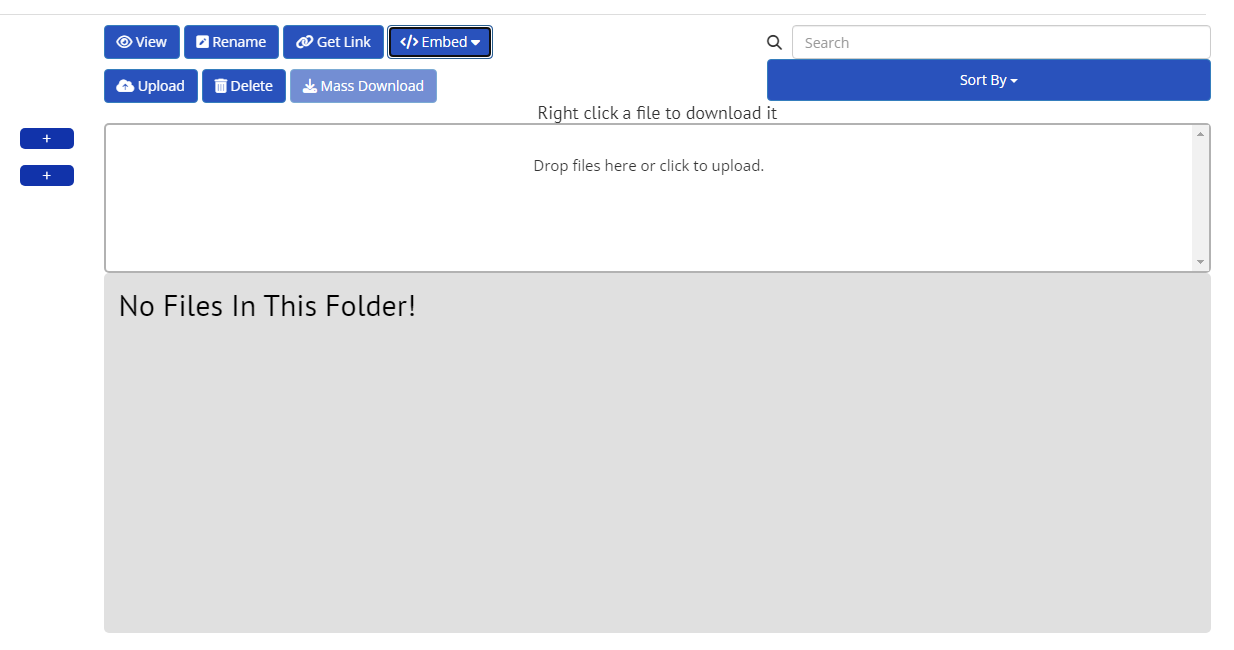
A white area will appear. In this box you will either want to drag and drop your file/s from a file manager window from your computer.
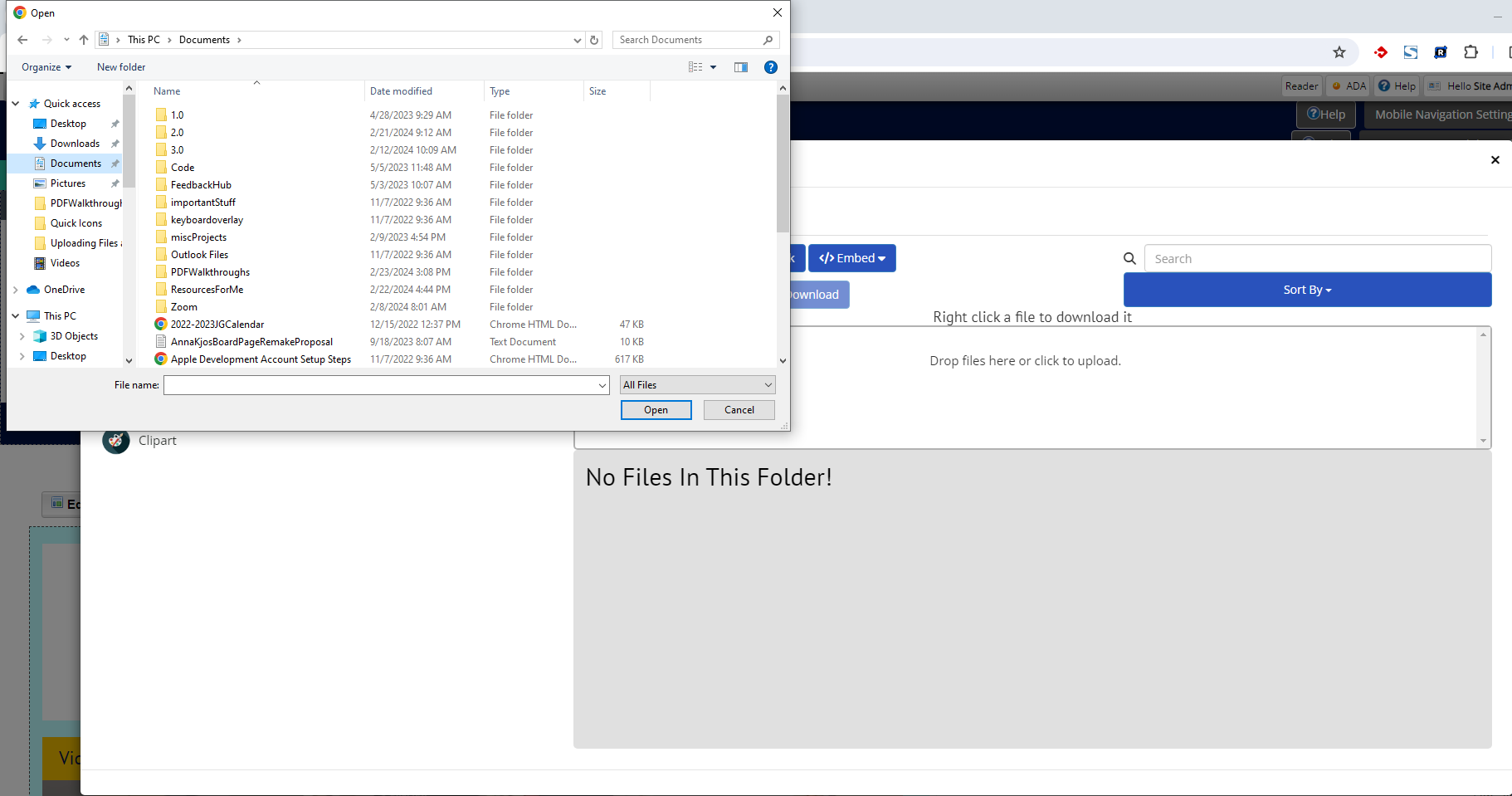
Alternatively you can click in the white space to have a file manager window open up for you so you can select the files you want to add.
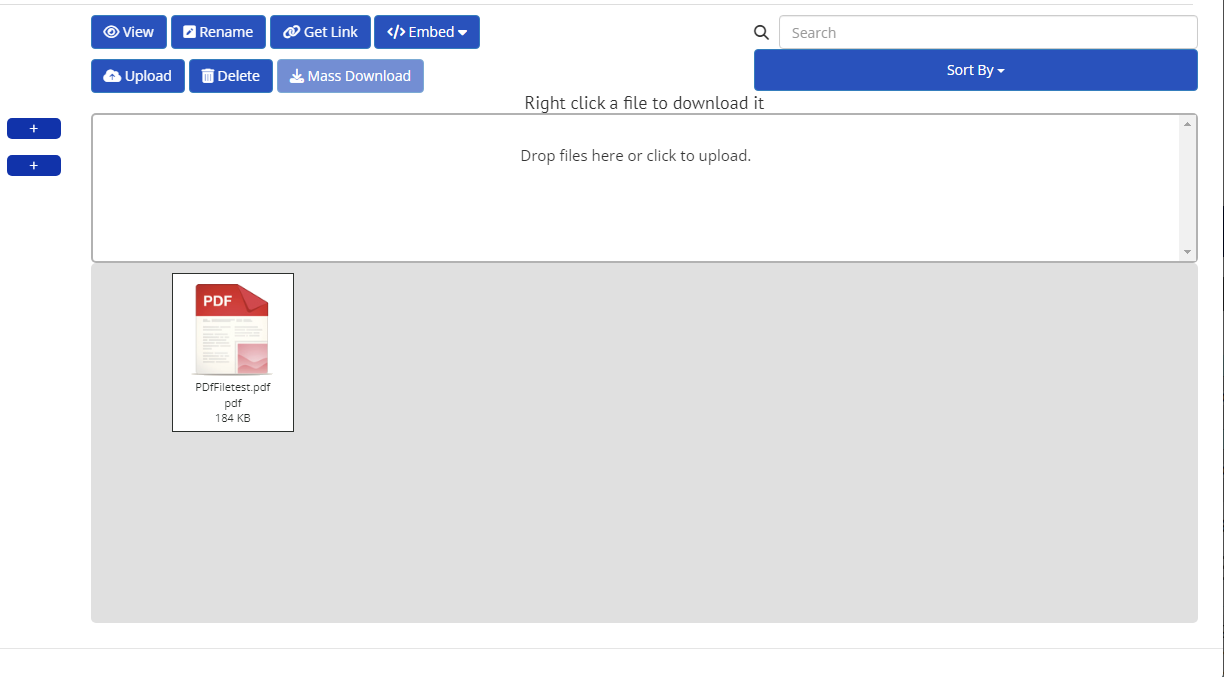
Once you have done that then the files should appear under the white area. Do keep in mind that if you added a lot of files at once that you should double check what has been uploaded to make sure that they all got uploaded.
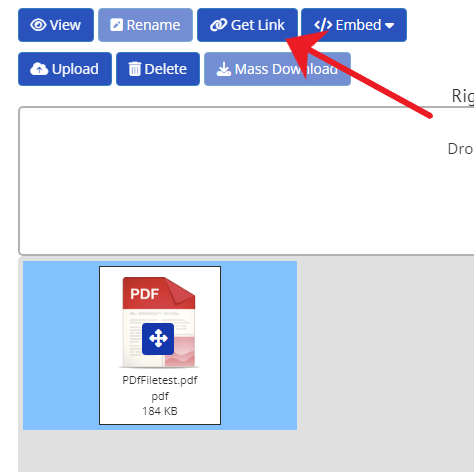
Now we have files we can link to places! This is great since that means we can use this file on the site now. However, to do that we will need to get the files link. The first in doing this part is to clink on the file you need the link for so that the background turns blue. You will now want to click on Get Link in the series of buttons on top of the white space.
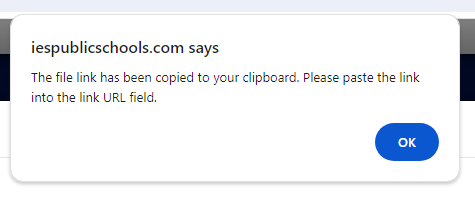
A box will show up that says either “ [school site name] says The file link has been copied to your clipboard. Please paste the link into the link URL field. “ Or “ [school name} says here is your link: [ file path/link to the file] Please paste the link into the link URL field.” In this last case you will want to copy the text so you can paste it later as it was not automatically copied to your clipboard. This usually only happens if your url has a http instead of https in it.
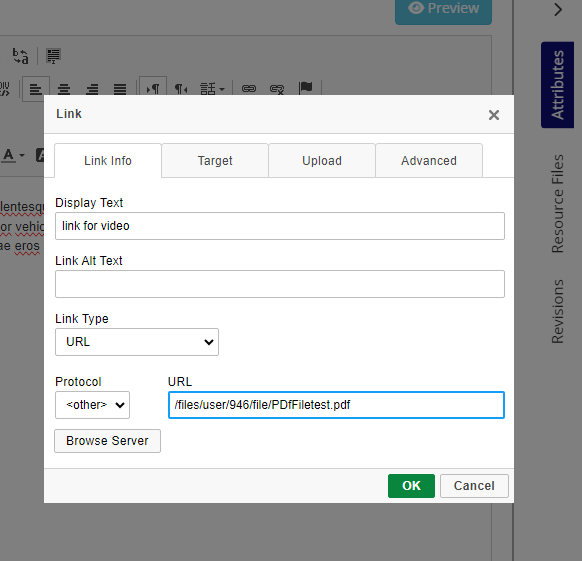
You can now paste that link into any field where it’s asking for a URL. PIctured here is an example of adding a pdf to Link Box in a Page ( used to make hyperlinks). And now you know how to link files and images.